
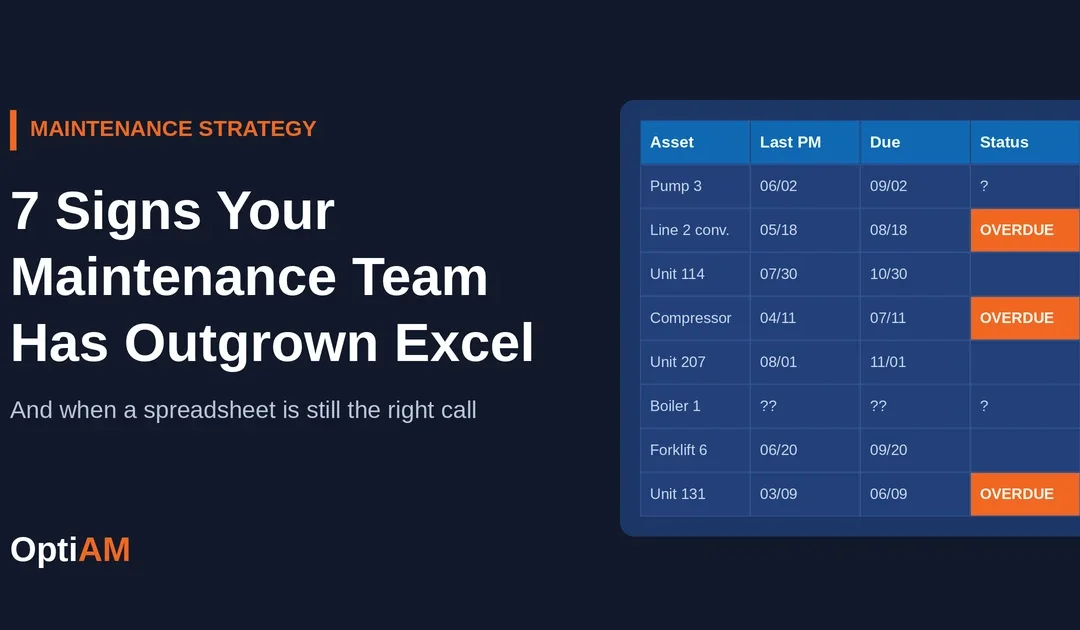
Most maintenance programs start in a spreadsheet, and there is nothing wrong with that. You need a CMMS when the spreadsheet starts costing more time than it saves: when PMs depend on someone remembering, more than a few people edit the file, or a history request takes days instead of minutes.
Excel is free, everybody knows how to use it, and for a small team with one site and one person keeping the file, it works. The trouble is that spreadsheets fail quietly. There is no single day when the file breaks. PMs slip a little, a second version shows up, the monthly report takes a little longer, and one day the person who understands the workbook goes on vacation.
Here are the seven signs we see most often when a maintenance spreadsheet has become the bottleneck, and what fixes each one.
7 signs you need a CMMS
1More than three people are editing the file
Once four, six or ten people touch the same workbook, it stops being a record and starts being an argument. Somebody sorts a column and breaks a formula. Somebody saves a copy to their desktop. Nobody can tell who changed what, or when.
What fixes it: Give every person their own login and role, so each change has a name and a time stamp on it. See Asset Manager →
2Each site has its own version
A second or third location usually means a second or third file. Now every monthly number starts with reconciling spreadsheets that were never built to match, and the version you are looking at may not be the current one.
What fixes it: Run every site out of one live system, so there is only ever one version of the truth. See Asset Manager →
3PMs slip because someone has to remember
Excel can hold a due date. It cannot create the work. If PMs only happen when someone scans a column on Monday morning, then vacations, busy weeks and turnover all turn into missed PMs, and missed PMs turn into breakdowns.
What fixes it: Let PMs create their own work orders on a calendar, runtime or usage trigger. See Work Order Manager →
Not sure how many of these apply to you?
Answer ten quick questions and get an honest verdict: still fits, starting to crack, or outgrown. No email needed to see your result.
4Techs cannot see the work at the machine
A printed list is out of date by 9 a.m. A tech who has to walk back to the shop, or call someone, to find out what is next is losing time on every job, and the work that never makes it onto the list simply does not happen.
What fixes it: Put today’s work orders, procedures and manuals on the tech’s phone, even where there is no signal. See Work Order Manager →
5The whole system lives in one person’s head
Every spreadsheet has an owner who knows which tabs matter and which formulas not to touch. When that person takes two weeks off, or leaves, the program goes with them.
What fixes it: Turn the way your best people work into standard task packages anyone on the team can follow. See Task Developer →
6Audits and history requests take days
An auditor, an insurer or a customer asks for the full maintenance history on one machine. If the honest answer is a few days of digging through tabs, folders and inboxes, the spreadsheet is costing you credibility on top of time.
What fixes it: Tie every work order, reading and part to the asset, so the history is one click away. See Asset Manager →
7The monthly report eats a day
If building a report on downtime, PM completion or maintenance cost means a day of copying and pasting, it probably gets done late, gets done rough, or does not get done. That is the data leadership uses to decide your budget.
What fixes it: Get one live view of downtime, PM completion and open work instead of a monthly rebuild. See Management Center →
Spreadsheet vs. CMMS at a glance
| Spreadsheet | CMMS | |
|---|---|---|
| PM scheduling | Holds a due date. Someone has to notice it. | Creates the work order on a calendar, runtime or mileage trigger |
| Who changed what | Unknown once the file is shared | Every change has a name and a time stamp |
| Multiple sites | One file per site, reconciled by hand | One live system for every site |
| At the machine | Printed list or a phone call to the shop | Work orders, procedures and manuals on the phone, even offline |
| Asset history | Spread across tabs, folders and inboxes | Every work order, reading and part tied to the asset |
| Parts | Separate list, often out of date | Parts tied to work orders, so stock drops as work gets done |
| Reporting | Rebuilt by hand every month | Live view of downtime, PM completion and open work |
| Cost to start | Free | Subscription, plus a few weeks of setup |
The signs show up faster with vehicles and mobile equipment
Fleet PMs run on miles and engine hours, not just dates. Units are spread across yards and job sites. Inspection records, repair history and tire and brake work need to be pulled by unit on short notice. A spreadsheet that works for a single shop floor usually breaks first on a fleet.
Related: Missed and lost work orders usually show up first. 10 reasons your company needs a work order system walks through what that costs and what fixes it.
What the spreadsheet is really costing you
The spreadsheet is free. Keeping it running is not. Here is a simple example you can swap your own numbers into:
- A planner spends 4 hours a week updating the file, chasing PMs and building reports
- At a loaded rate of $45 an hour, that is about $9,000 a year in admin time
- That is before a single missed PM turns into a breakdown, which on a production line or a truck that has to run can cost more than that in one day
The admin time is easy to measure. The missed PMs and the unplanned downtime are where the real money goes.
Run your numbers: The Savings Calculator estimates what a CMMS saves your team based on your own labor, downtime and PM figures. Open the Savings Calculator →
When Excel is still the right call
A CMMS is not the answer for everyone. If most of these are true, a spreadsheet is probably still doing its job:
- One site, and one person owns the file
- A few dozen assets, not a few hundred
- PMs get done on time without anyone chasing them
- You can answer an audit or history request in minutes
If that is you, keep the spreadsheet and revisit when you add a site, add people, or start missing PMs. Buying software ahead of the problem is not a win.
Related: Not sure if you need a CMMS or a full EAM? CMMS vs EAM breaks down the difference in plain terms.
What switching actually looks like
The teams that get the most out of a CMMS do not try to move everything on day one. They start where the spreadsheet hurts most:
- Critical assets first. Get the equipment that stops production into one register with its history.
- Then PMs and work orders. Move PM schedules over so they create their own work, and get requests off the phone and into tracked work orders.
- Then the phone in the tech’s pocket. Work orders, procedures and manuals at the machine.
- Parts and reporting last. Once the work is flowing through the system, stock levels and dashboards come along with it.
With OptiAM, teams go live in weeks, not months, and the spreadsheet you have today is a useful starting point for your asset list. See how OptiAM works as a CMMS →
OptiAM is built by Andromeda Systems Incorporated, the reliability and supportability engineering team that has supported DoW assets since 2005. The same reliability-centered maintenance (RCM) thinking behind that work shapes how OptiAM schedules PMs and tracks asset history.
Find out if your team has outgrown its spreadsheet
The Spreadsheet Check scores your team across five areas and tells you exactly what to fix first. Two minutes, no email required to see your result.
Common questions
Can Excel be used as a CMMS?
It can track assets and due dates, and plenty of small teams use it that way. What it cannot do is create work orders on its own, work on a phone without a signal, keep a record of who changed what, or pull reports without manual effort. That is the line between a spreadsheet and a CMMS.
What is the difference between a CMMS and a spreadsheet?
A spreadsheet stores information that someone has to act on. A CMMS acts on it: it generates PM work orders when they come due, routes requests to the right tech, ties parts and history to each asset, and builds reports from the work as it happens.
How do I know if my team is ready for a CMMS?
If two or more of the signs above sound familiar, it is worth a look. The fastest way to find out is the Spreadsheet Check, which scores your team in about two minutes.
How many assets do you need before a CMMS makes sense?
There is no magic number. Asset count matters less than how many people, sites and PMs you are juggling. A team with 40 assets across two sites and four techs usually gets more out of a CMMS than a single site with 150 assets and one careful planner.
How long does it take to switch from Excel to a CMMS?
Most teams go live in weeks. Start with critical assets and their PM schedules, then add mobile work orders, parts and reporting once the work is flowing through the system.
Can I import my Excel data into a CMMS?
Usually, yes. Your asset list, PM schedules and part numbers are a good starting point. Clean out duplicates and retired equipment first, because importing a messy file just moves the mess.
Keep reading
10 Reasons Your Company Needs a Work Order SystemThe signs you have outgrown sticky notes and email, and what to look for in a system.CMMS vs EAM: What’s the Difference?Which one your operation actually needs, and the reliability layer most systems skip.CMMS vs ERP for FacilitiesWhy the one-system decision backfires, and how to make the case for a real CMMS.